

 Hajra Naz
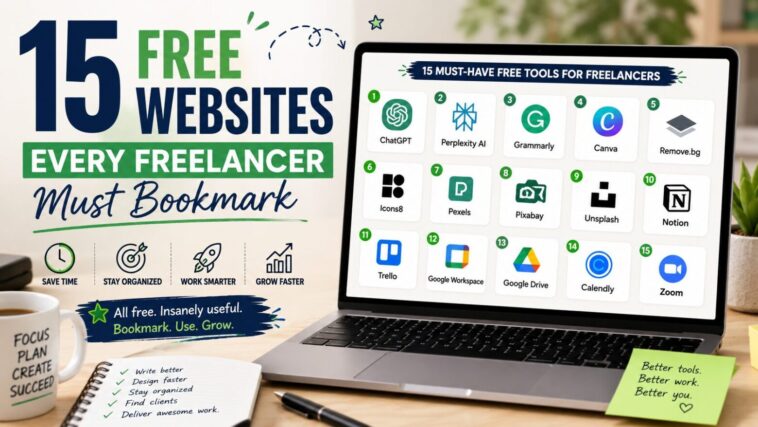
The best websites for freelancers cover the “extra work” freelancing throws at you beyond the actual job — free AI and writing tools, design tools, invoicing and organization apps, and client-facing tools — all picked from real freelance workflow experience, not just a generic roundup.
Here’s something nobody tells you when you start freelancing: half the job isn’t even the job. You’re not just writing, designing, or coding—you’re also editing photos, chasing invoices, replying to client emails at 11 pm, and trying to make a two-person operation (you and… you) look like a proper business.

I used to think you needed paid software for all of this. Turns out, you don’t. There’s a whole stack of free websites out there that can quietly handle most of the “extra work” freelancing throws at you. I’ve grouped them below by what they actually help with—writing, design, visuals, staying organized, client-facing stuff, and building a presence people trust. Bookmark whatever fits your workflow and ignore the rest.
AI & Writing Tools
No matter what you freelance in, at some point you’re writing something—an email, a proposal, or a project update. This is honestly where AI tools have made the biggest dent in my week.
- ChatGPT gets used for the boring stuff mostly. Drafting an awkward email, outlining a proposal I don’t feel like starting from scratch, throwing around content ideas—tasks that used to take thirty minutes now take five. It’s not thinking for you; it’s just clearing the runway.
- Perplexity AI is what I reach for instead of Google when I need an actual answer, not ten tabs to sift through. It gives you a direct response with sources attached, which is genuinely useful right before a client call when you need to sound like you already know their industry.
- Grammarly sits quietly in the background catching things you’d otherwise miss—a typo, a sentence that reads a bit off, or a tone that comes across harsher than intended. If English isn’t your first language, this one alone can change how confident your emails sound.
Writers, marketers, VAs, students — basically anyone who types for a living will get something out of these three.
Read More: 5 Best AI Writing Tools to Level Up Your Content Creation
Design Resources
You don’t have to be a designer to need design, and that’s the annoying truth of freelancing. Sooner or later you’ll need a social post, a resume that doesn’t look like it’s from 2009, or a client proposal that actually looks like one.
- Canva is the obvious one, but it earns its reputation. Drag-and-drop templates mean something decent-looking takes minutes, not hours — presentations, Instagram carousels, whatever.
- Remove.bg does exactly one thing: strips the background out of a photo. Used to require Photoshop know-how. Now it’s one click and done.
- Icons8 is where I go when I need an icon or a small illustration and don’t want to spend forty minutes hunting for the right style (or worrying if I’m even allowed to use it).
Designers and marketers lean on these the most, but honestly, anyone building a portfolio ends up here eventually.
Read More: How to use Canva for designing your social media posts
Free Photos & Videos
Stock photography used to feel like a locked door unless you paid up. Not anymore, and the quality difference barely shows.
- Pexels has a huge library of royalty-free photos and videos that don’t scream “stock photo” the second you look at them.
- Pixabay goes a bit further—images, video, illustrations, and even background music if you’re putting together something with sound.
- Unsplash leans artistic. If you want a blog or website to look expensive without spending anything, this is usually where that photo comes from.
Running a blog, a YouTube channel, a website, and socials—these three alone will cover most of what you need.
Productivity Tools
Without some kind of system, freelancing turns into sticky notes and half-remembered client requests fast.
- Notion is where a lot of people (myself included) dump everything — project notes, client details, random ideas — instead of bouncing between five different apps.
- Trello is simpler. Boards and cards, nothing fancy, which suits people who think visually and hate long to-do lists.
- Google Workspace is still the default for actual collaboration—docs, sheets, and real-time editing with a client instead of emailing files back and forth like it’s 2010.
You don’t need all three. Pick one and actually use it — that’s the part that matters, not which app you chose.
Read More: 6 Highly Useful AI Productivity Tools You Won’t Believe Are Free
Freelance Business Essentials
Clients notice small things more than you’d expect: how smooth the call felt, how fast you sent the file, how easy it was to book time with you.
- Google Drive is the safe spot for client files — no attachment limits, no “sorry, can you resend that” emails.
- Calendly kills the scheduling back-and-forth entirely. One link, they pick a slot, and done. No more “Does 3pm work? Actually, how about Thursday?”
- Zoom is still the standard for calls, and having it set up properly says more about how professional you are than you’d think.
First impressions carry a lot of weight here, because clients are often deciding whether to trust you with their money based on very little else.
Portfolio & Personal Branding
There’s a good chance a client has already looked you up before they ever message you.
- GitHub matters if you’re a developer — it’s often the first place someone checks to see actual code, not just a bullet point on a resume.
- Behance does the same job for designers. A visual portfolio says more in ten seconds than a paragraph of self-description ever could.
- LinkedIn matters no matter what you do. A clean, well-written profile with real examples builds trust before the conversation even starts.
Think of your online presence as a pitch that keeps working even when you’re asleep.
Read More: What Is Personal Branding? Here’s Why It’s So Important
Bonus Websites You Should Know
A handful of lesser-known tools that don’t get talked about enough but genuinely save time.
- TinyWow—a surprising bundle of free PDF, image, and video tools in one place; no downloads.
- Photopea—basically Photoshop, running in your browser, free. Great for the occasional edit that doesn’t justify a subscription.
- Temp Mail — a throwaway email address for signing up on sites you’re not sure you trust yet.
- WeTransfer—for the files too big to email, which happens more often than you’d think.
You won’t use these daily, but when you need one, you’ll be glad you bookmarked it.
Your Freelance Toolkit Checklist
If you’re building your own setup from scratch, here’s roughly what a solid one looks like:
- An AI assistant for writing and research
- A grammar checker
- A design tool
- A stock photo and video library
- A project management tool
- Cloud storage
- A video meeting tool
- A portfolio website
- A professional LinkedIn profile
None of this needs to cost money. What actually separates a freelancer who looks put-together from one who looks scattered is mostly just knowing these tools exist and bothering to use them.
Final Takeaway
Working hard has never really been the differentiator in freelancing. Working smart is. The right tools won’t do the job for you, but they’ll help you save time, deliver better work, impress clients, and grow things at a pace that doesn’t feel chaotic.
Every website on this list is free, and yet together they can genuinely change how your freelance career runs day to day. The people who get ahead usually aren’t more talented — they’ve just stopped burning hours on things a free tool could’ve handled in seconds.
So, which one are you actually going to use this week?
Frequently Asked Questions
What are the best free websites for freelancers?
The most useful ones cover AI and writing help, design and visuals, invoicing and client management, and staying organized — a small stack of free tools can cover most of what a paid toolkit does when you’re starting out.
Do I need paid software to freelance professionally?
No. A well-chosen stack of free tools can handle writing, design, invoicing, and client communication professionally — paid upgrades only start to matter once your workload or team grows.
Which free tools should new freelancers bookmark first?
Start with one tool from each category — an AI writing assistant, a simple design tool, an invoicing app, and a task tracker — rather than trying to adopt every tool on the list at once.
Related reading
- 7 AI Prompts That Save You Hours Every Week
- The 7 Rangi Formula: Win More Freelance Proposals
- 101 Websites to Earn Money Online
Last updated: August 2026.